Your laptop has two USB-C ports. Your desk needs dual monitors, wired internet, an external drive, a charger, and somewhere to plug in your SD card. So you have a dongle for the monitors, a second dongle for Ethernet, a third one that lives in your bag and migrates to the wrong bag constantly, and a power brick sitting on the floor because there is nowhere else for it to go. The setup works. It looks like a tech garage sale.
These five products fix that. Not by adding more stuff to your desk, but by replacing the specific things that cost you time and attention every single workday. Each one earns its footprint with a clear answer to a real problem. The HubKey handles your dongle situation and your physical controls. The OrigamiSwift handles your mouse. The Logitech MX Brio Ultra handles your camera. The Rocketbook handles your notes. The Rolling Clock handles your time zones.
1. HubKey Gen2
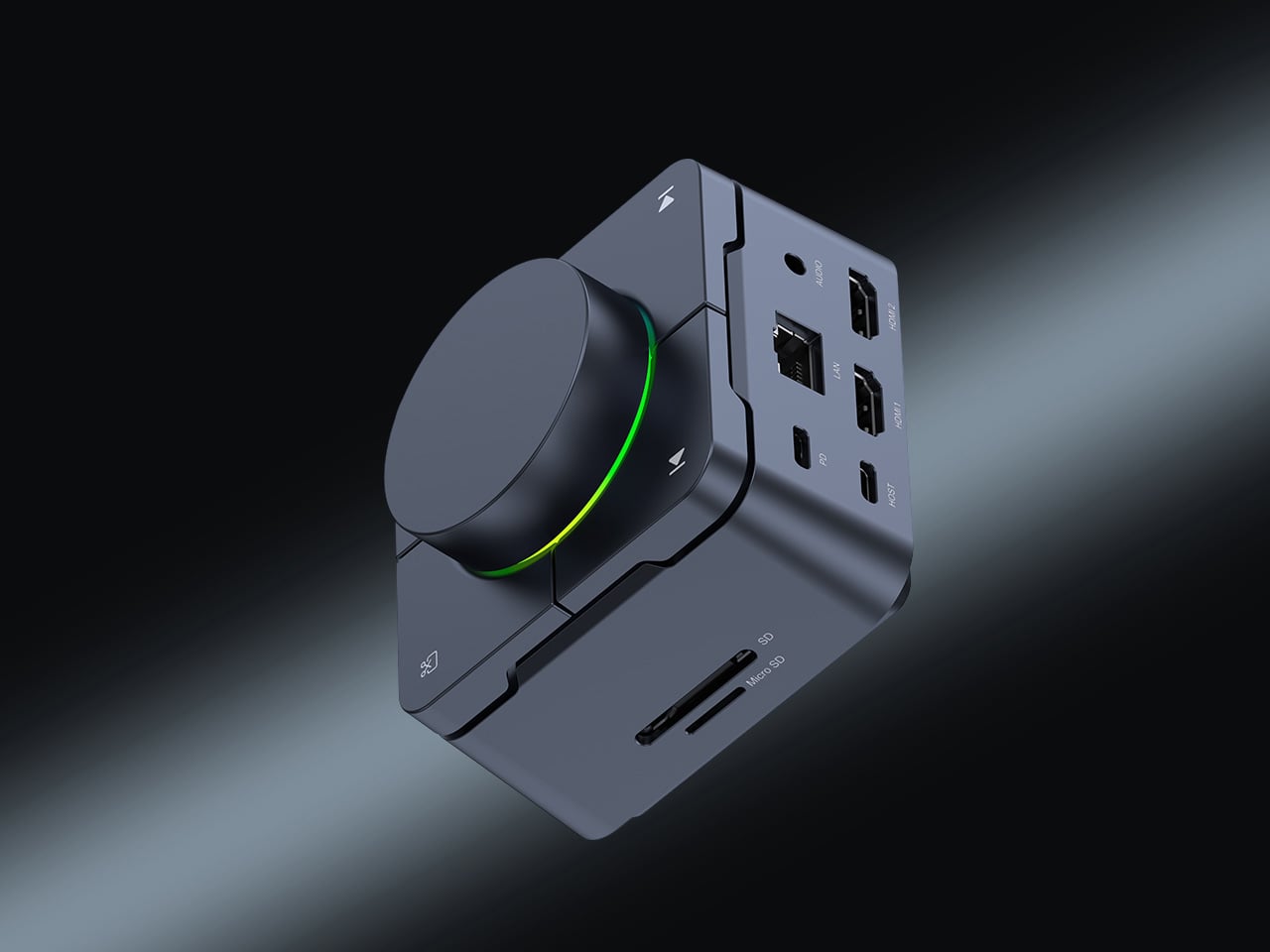

Count the adapters on your desk right now. There is a display dongle, a USB-A hub, an Ethernet adapter, and a charging brick that has lived on the floor for six months. The HubKey Gen2 replaces all of it with one cable back to your laptop. Dual 4K 60Hz HDMI outputs, 100W PD charging, 2.5 Gbps Ethernet, 10 Gbps data, SD and TF slots, and a 3.5mm jack — simultaneously, without throttling. Most hubs make you choose between charging and full performance. The HubKey does not.
What actually separates it is the top panel. Four shortcut keys and a central knob handle volume, mute, screen lock, and screenshots without touching your keyboard. It runs plug-and-play on Windows, macOS, Linux, and Steam Deck out of the box, with an optional driver that unlocks 170 preset combinations and a fully custom mode when you want it. Simple and immediate on day one. Deeper when you need it.
What we like:
- Dual 4K 60Hz from a single cable to your laptop is the feature that ends the one-monitor compromise for anyone who has been putting off a second display.
- The physical knob and shortcut keys turn volume adjustment and screen privacy into a hand gesture instead of a keyboard hunt. Once you have a physical mute button, software mute buttons feel like a step backward.
What we dislike:
- The shortcut customization is deep enough to be worth exploring and slightly too deep to set up quickly. Budget 20 minutes before your first real workday with it.
2. OrigamiSwift Folding Mouse

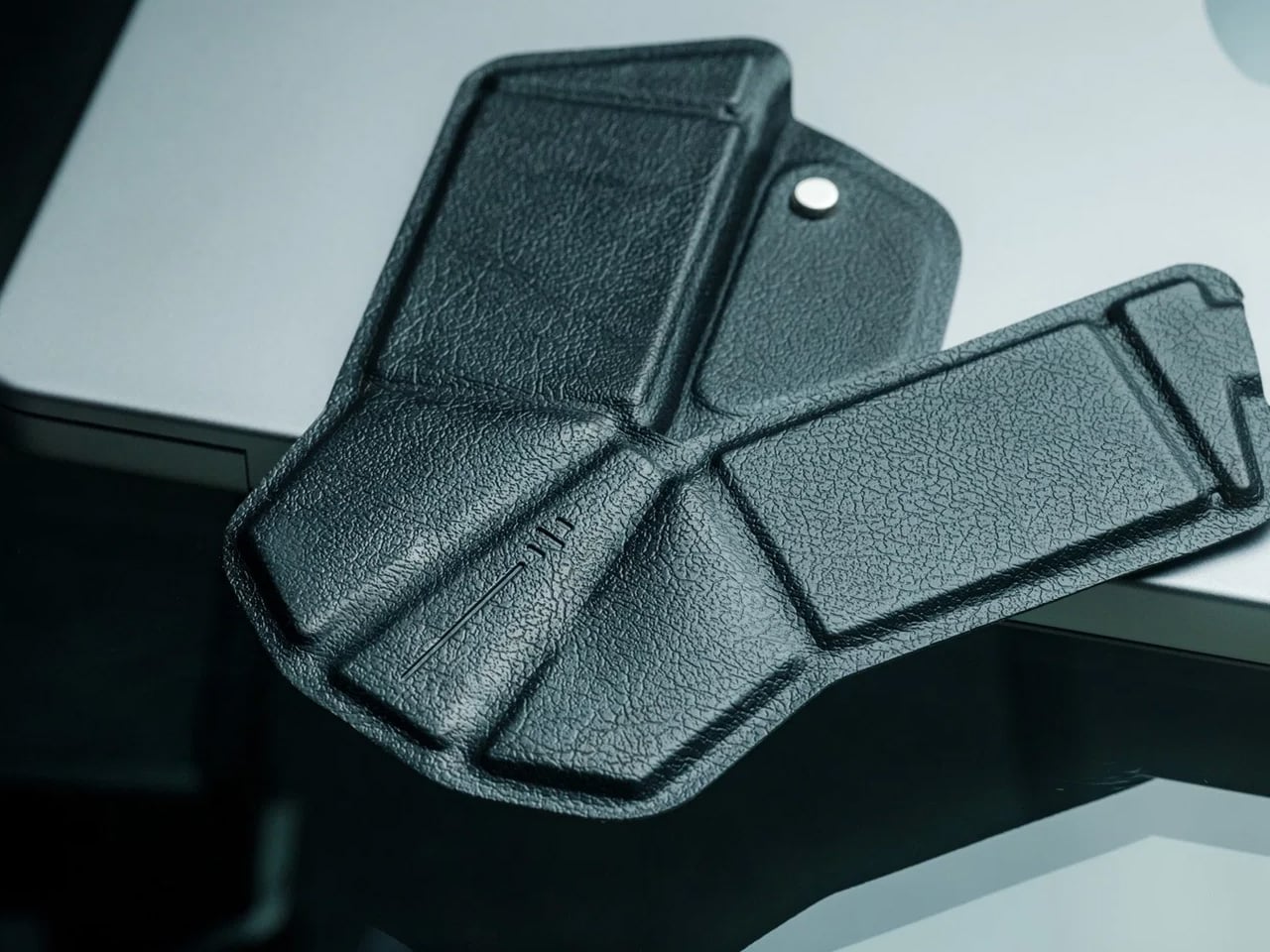
If you travel with a laptop, you own two mice. The real one on your home desk. And the compact, slightly uncomfortable one in your bag that you use everywhere else and quietly resent by 2 pm. The OrigamiSwift folds flat to 4.5mm, which is thin enough to slip between notebook pages without leaving a visible bump. It unfolds in under half a second into a full-sized ergonomic shape that sits naturally in your hand. At 40 grams, it weighs less than your wallet.
The tracking precision has nothing to do with its size. The Bluetooth connection is reliable. The fold mechanism feels deliberate rather than fragile, which matters because it is the interaction you repeat every time you sit down. At $85, it costs less than most dedicated desktop mice and does something none of them can: it works equally well in your carry-on and at your home desk without asking you to choose between comfort and portability. The folding mouse has been a category of compromises for years. This one is not.
What we like:
- The ergonomic angle on deployment feels solid and settled, not provisional. It does not flex or wobble under a firm grip the way folding products tend to when they meet any real resistance.
- The sub-half-second flip is the kind of interaction that registers the first time and then disappears into muscle memory by day three.
What we dislike:
- The 40-gram weight takes a few days to stop noticing if you are coming from a heavier desktop mouse. It is not uncomfortable, just different, and your hand knows it before your brain stops caring.
- Bluetooth only means no wired fallback, which matters on the rare occasion your connection cuts out mid-deadline.
3. Logitech MX Brio Ultra
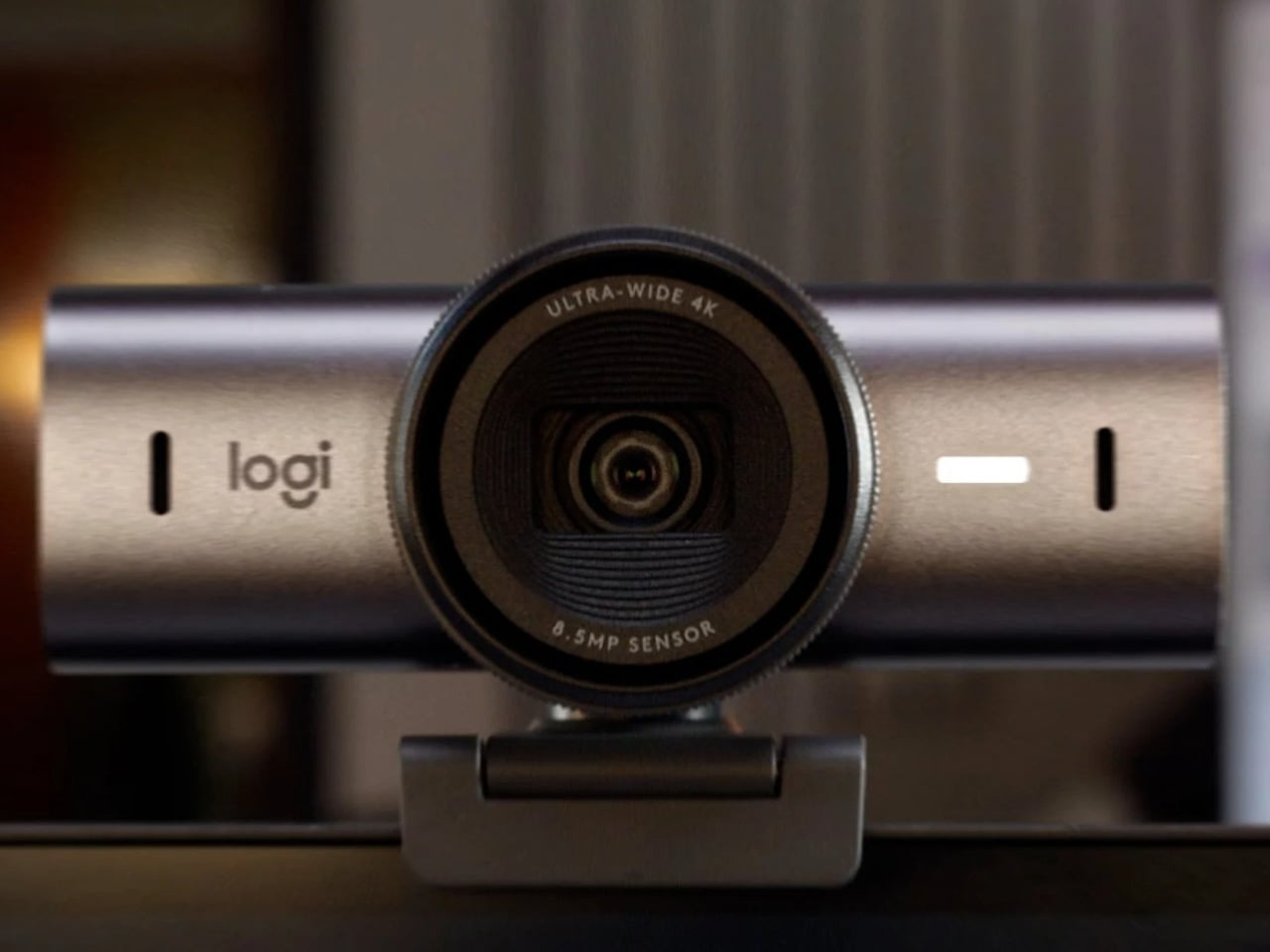

At some point this year, you saw your own face in the corner of a video call, and it looked like you were dialing in from a parking structure. Flat, gray, slightly soft around the edges. That is your built-in laptop webcam doing its best with a sensor roughly the size of a fingernail. The Logitech MX Brio Ultra runs a 4K sensor with AI-powered auto-framing, and the gap between what it produces and what your laptop camera produces is not subtle. It is the difference between looking like you prepared for the call and looking like you rolled in from the hallway.
Logitech is the default answer for a reason. The MX Brio Ultra is what Wirecutter recommends, what the r/homeoffice community lands on after every comparison thread, and what most people in a serious remote setup are already running. The AI framing tracks you as you move and keeps the shot composed without any input from you. At $200, it sits at the top of the mainstream webcam market, and it earns that position by being the camera you set up once, forget about, and still look good on every call six months later. No fiddling with tracking zones, no hour in settings. It works the way a Logitech product always works: immediately and without drama.
What we like:
- 4K output with AI auto-framing is the combination that covers every remote work scenario, from a one-on-one call to a presentation with 50 people watching your frame.
- The setup experience is genuinely plug-and-play. If you have spent time configuring other AI webcams before a call, the MX Brio Ultra will feel like a relief.
What we dislike:
- At $200, it is the most expensive item on this list, and the price is harder to justify if your calls are mostly audio-only or your desk faces a window with no lighting control.
- The design is competent rather than interesting. It sits on your monitor and disappears, which is fine, but it does not add anything to how your desk looks the way some of the other picks here do.
4. Rocketbook Reusable Sticky Notes
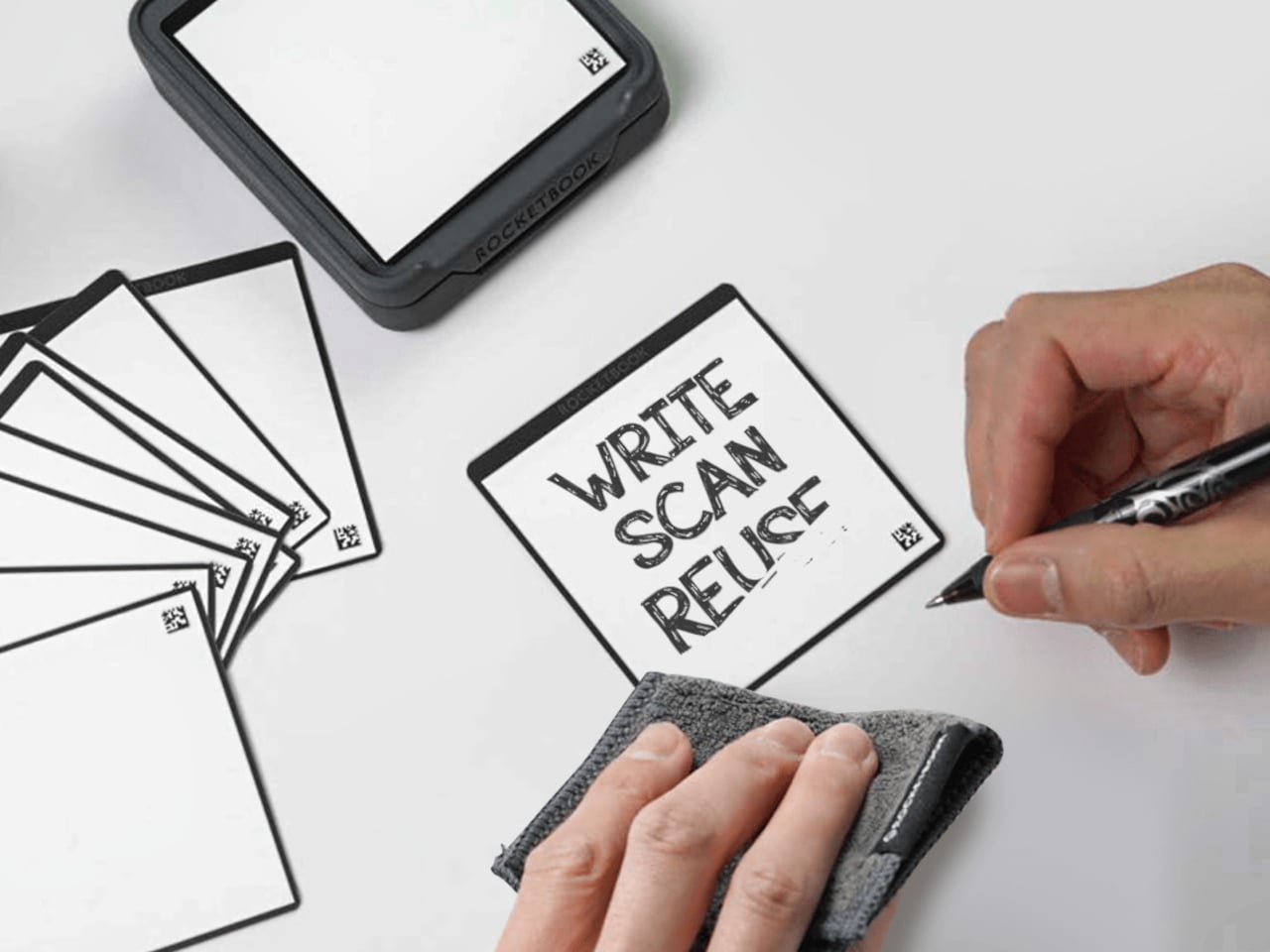
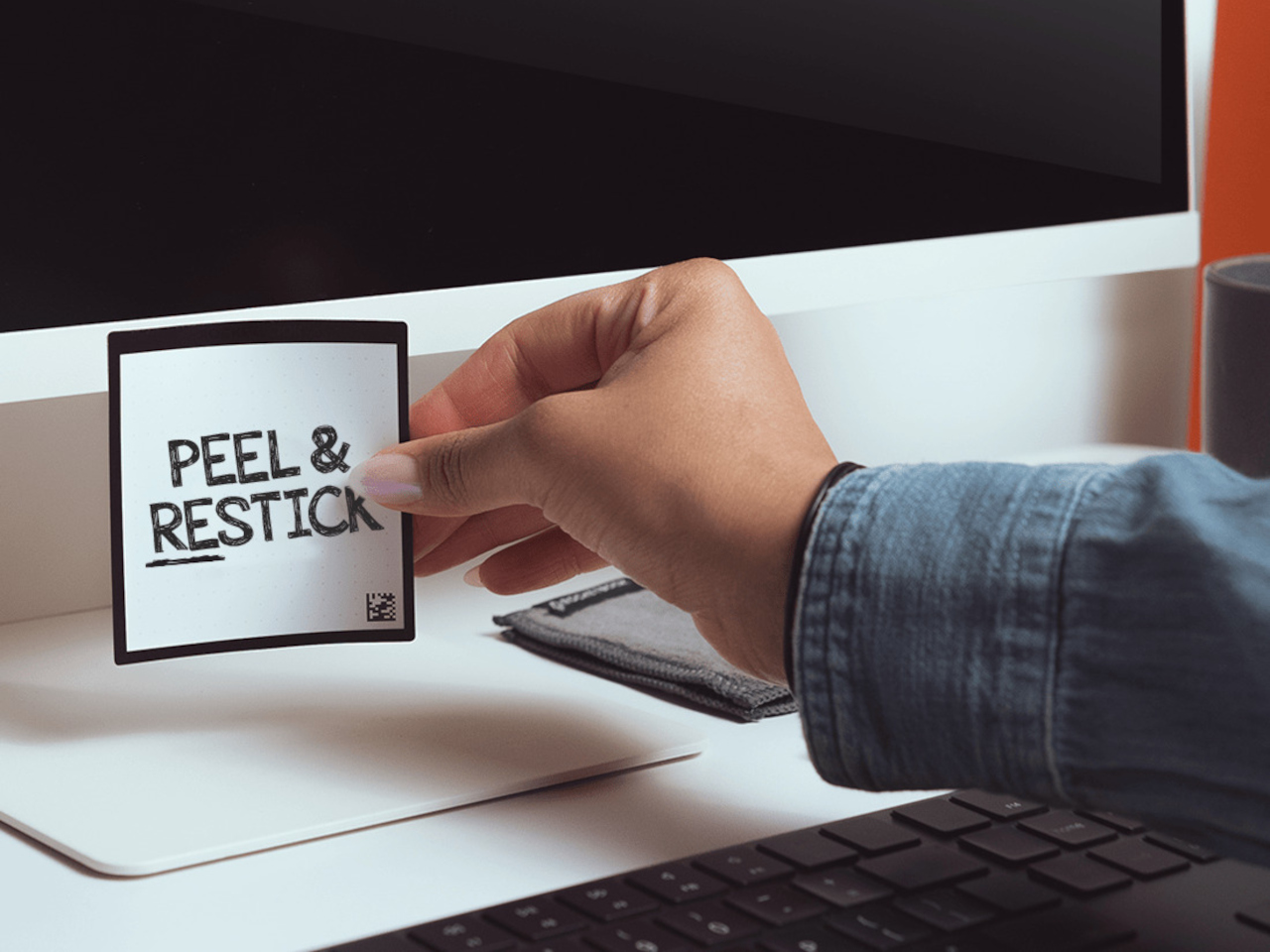
You have a stack of Post-its on your desk right now that you bought six months ago, used about a third of, and will eventually throw away when they stop sticking. Then you will buy another stack. Then another. The Rocketbook Reusable Sticky Notes break that cycle by doing something Post-its never could: you wipe them clean with a damp cloth and start over. Same note. Indefinitely.
The material feels like real paper, which matters more than it sounds. Other reusable note products go rigid and plastic and remind you every time you pick one up that you are using something weird. The Rocketbook version is thin and flexible, and the writing experience with a Pilot FriXion pen is close enough to a regular sticky note that the novelty wears off quickly and the habit takes over. The adhesive strip rinses clean and resticks the same way, so the note goes back on the monitor, the cabinet, or the edge of your desk exactly where you left it. The Rocketbook app photographs each note, transcribes your handwriting, and sends it to whatever cloud storage you already use, which means the thought is archived before you wipe the surface. You get the speed of analog and the permanence of digital without running an AI meeting bot or opening another productivity app.
What we like:
- The paper-like feel is the detail that makes this a daily habit rather than a novelty. It does not feel like writing on a whiteboard, and that distinction is what separates it from every competing reusable note product.
- The app’s automatic transcription and cloud sync mean wiping the note clean is not losing the note. That confidence changes how freely you actually use them.
What we dislike:
- You are locked into Pilot FriXion pens, full stop. Your favorite pen does not work here, and if Pilot ever discontinues the FriXion line, the notes become decorative squares.
- The wipe-to-erase process requires a damp cloth nearby, which is one more thing your desk needs to accommodate. In a dry climate or a cold office, the cloth dries out faster than you expect.
5. Rolling World Clock
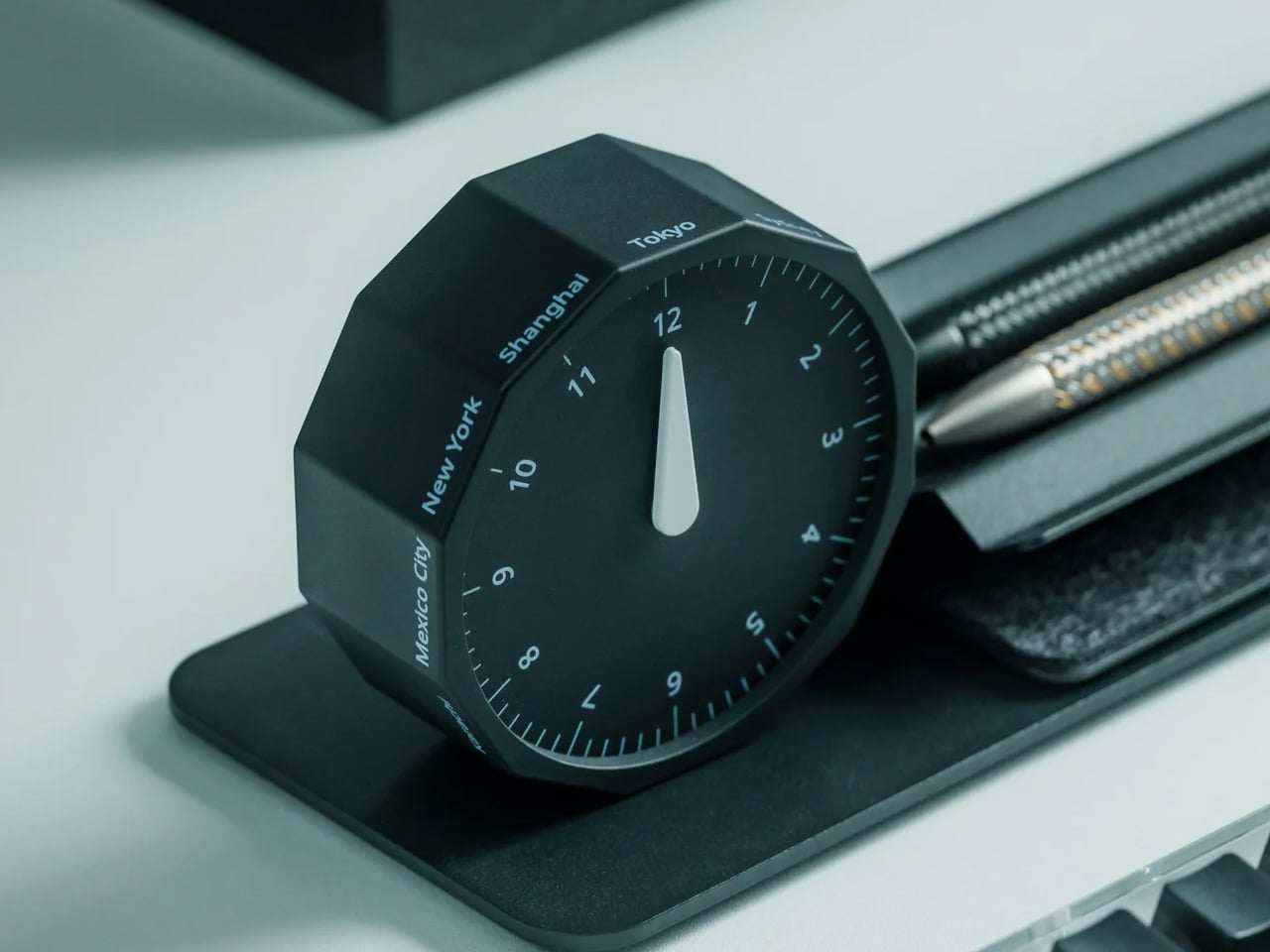
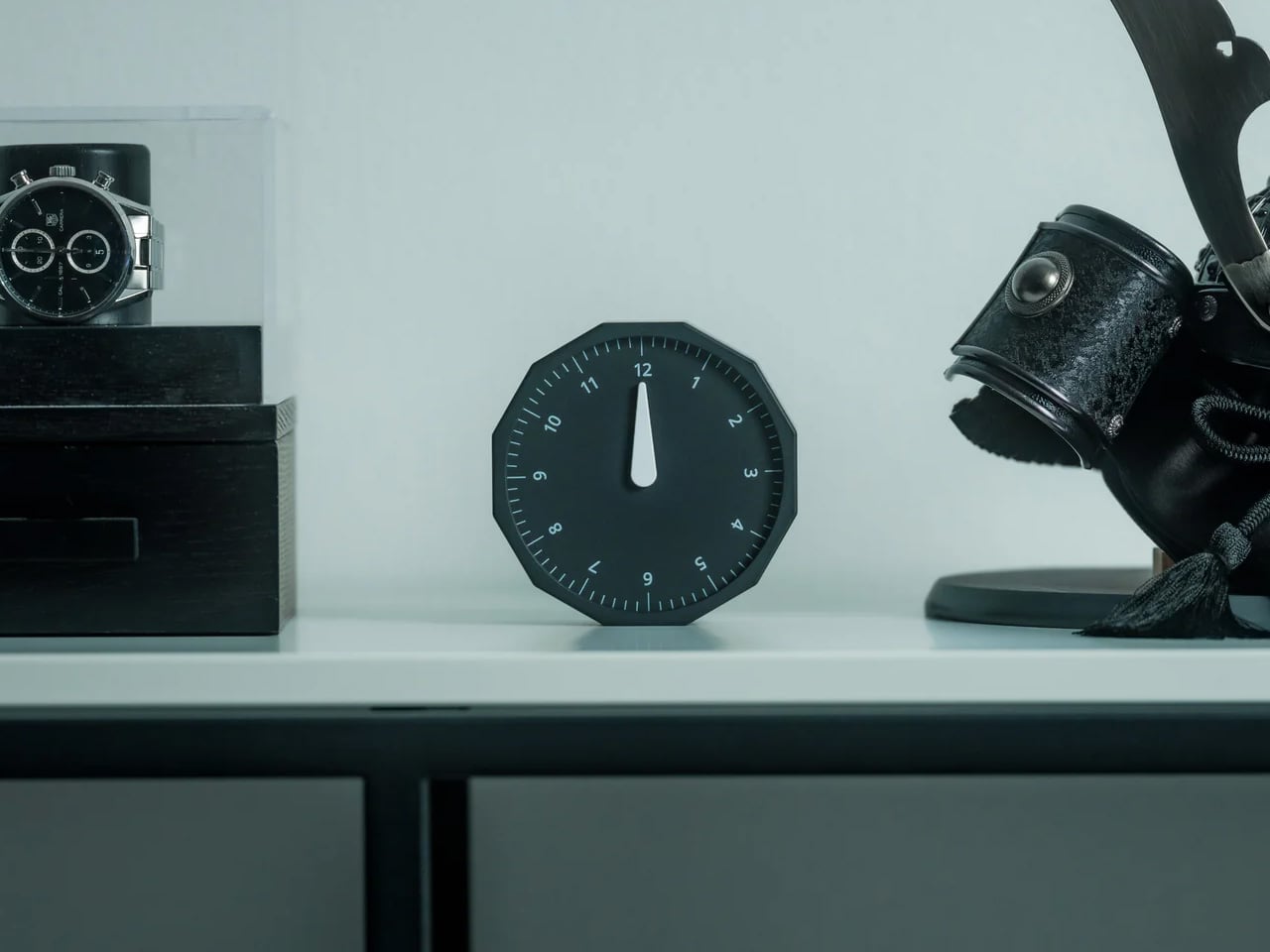
Before every Slack message you send to someone on another continent, you do the math in your head. Or you switch tabs. Or you pull up a world clock widget and then forget what you were doing before you opened it. The Rolling World Clock removes that entirely. It sits on your desk and shows you the time in every zone you track, physically, without touching a screen. You glance at it the way you glance at your coffee cup. No context switch, no arithmetic, no interruption.
At $49, this is the least expensive thing on this list and the one with the fastest daily return. The rolling display mechanism is considered, the design language sits cleanly next to other deliberate desk objects, and a physical clock requires no charge, no connection, and no subscription to do its job. That combination is rarer than it should be in 2026. The only maintenance it asks for is a manual adjustment twice a year for daylight saving time, which you were going to forget anyway, but at least now you have something specific to blame.
What we like:
- The physical format makes world time a peripheral-vision experience rather than an active one. You absorb the information without choosing to look for it, which is how a good desk tool should work.
- It reads as chosen rather than defaulted to, and that changes how the rest of your desk looks by association.
What we dislike:
- Manual daylight saving adjustment is a real inconvenience that arrives twice a year and catches you off guard both times. A clock that is an hour off is worse than no clock.
- Works best when you are tracking two or three time zones. If your work spans more than that, a digital solution handles the volume more honestly.
Five Products. One Decision Each.
Most home offices are assembled rather than designed. You know this because you built yours one order at a time, and the result is a surface full of things that coexist without quite agreeing. These five products are not a redecoration. They are five specific decisions: what your desk connects to and how you control it, how your mouse travels, how you look on a call, where your thoughts actually go, and how you read time without leaving a screen.
Together they cost less than most standing desks and do considerably more. The HubKey alone replaces a pile of adapters and adds physical controls your keyboard never had. The Logitech MX Brio Ultra makes your next video call the last time anyone asks if your connection is bad. The OrigamiSwift, the Rocketbook, and the Rolling Clock handle the small frictions that accumulate across a full workday without ever announcing themselves. That is what justifying every dollar actually looks like. Of everything on this list, the OrigamiSwift is the one I reach for first every single morning — not because it is the most impressive spec on paper, but because it removed a daily annoyance I had accepted as permanent. Turns out the right mouse for your desk and your bag was always the same mouse; it just needed someone to fold it properly.