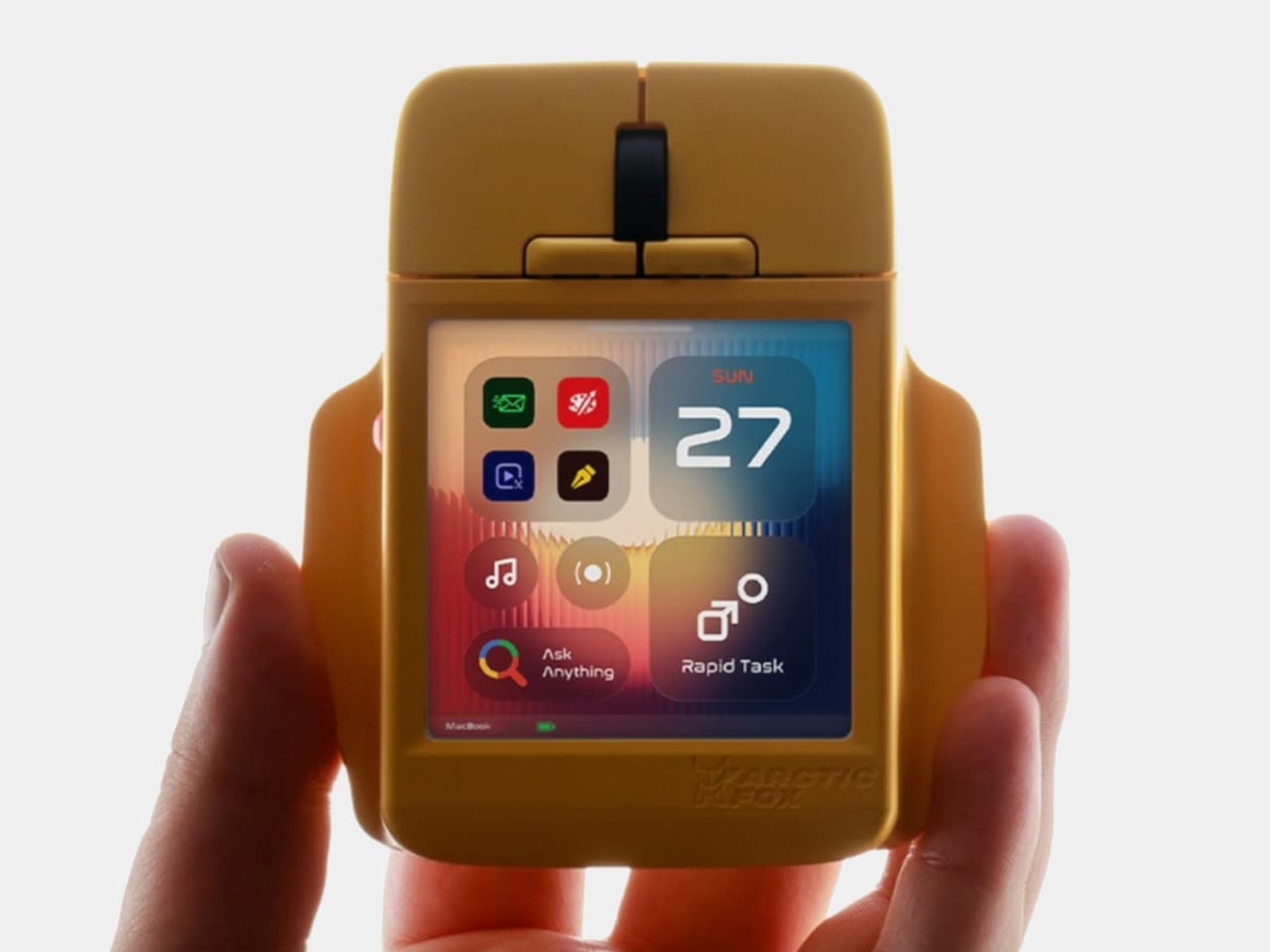
Computer mice have gained extra buttons and faster sensors, but most still leave the complicated work to your keyboard. Arctic Fox’s Super Mouse takes a rather different approach, putting a 3.1-inch touchscreen where you’d normally expect a plain palm rest. The idea is to bring shortcuts, quick typing, and even your calendar onto the device sitting underneath your hand throughout the working day.
That screen gives the mouse an unusual silhouette, closer to a tiny control console than the rounded pebble many of us are accustomed to. A broad, almost rectangular body has flared sides, with conventional click buttons and a black scroll wheel at the front. Yellow, white, and gray finishes offer personalities, although the yellow version isn’t interested in disappearing into your desk.
Designer: Arctic Fox
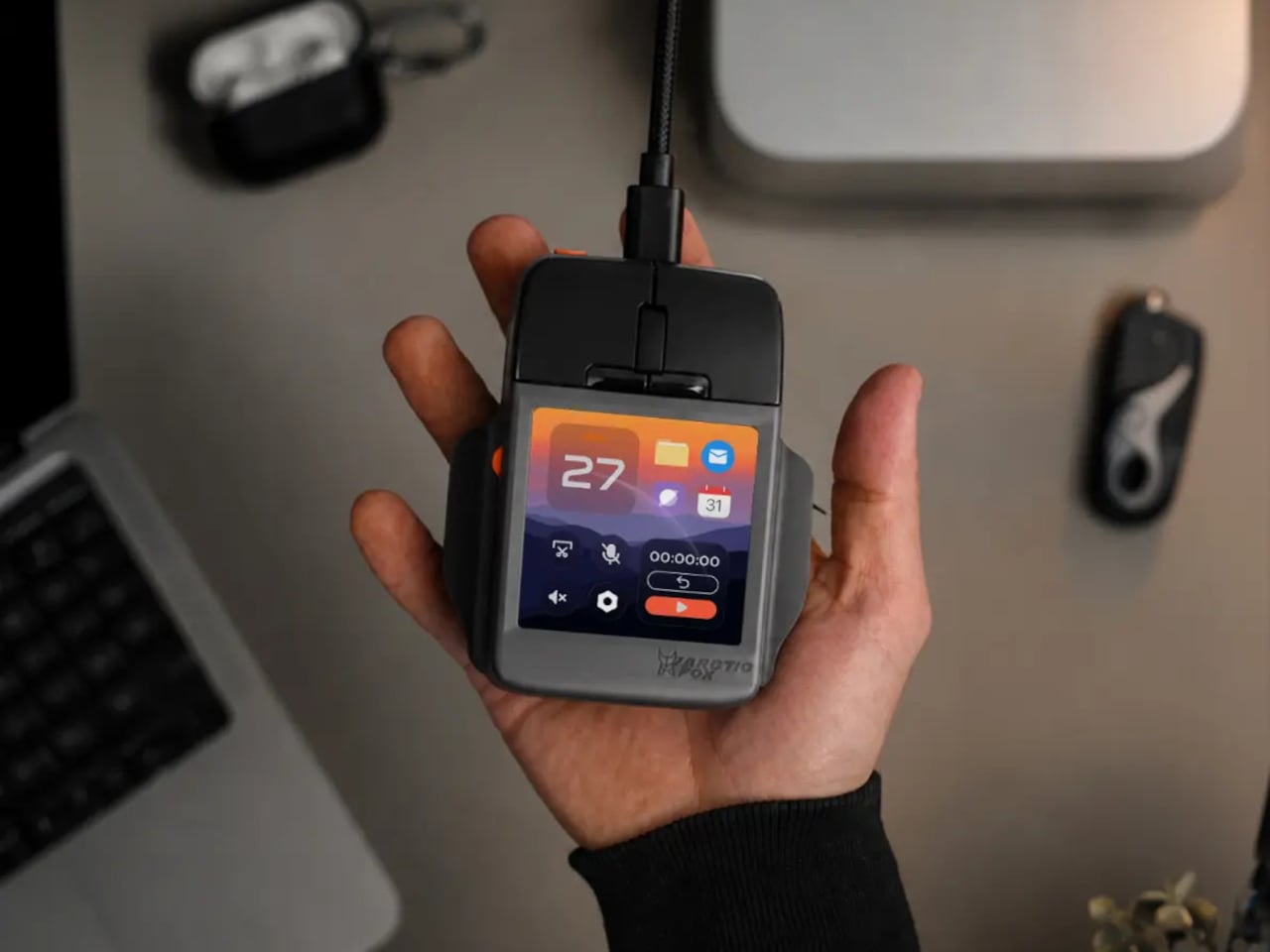
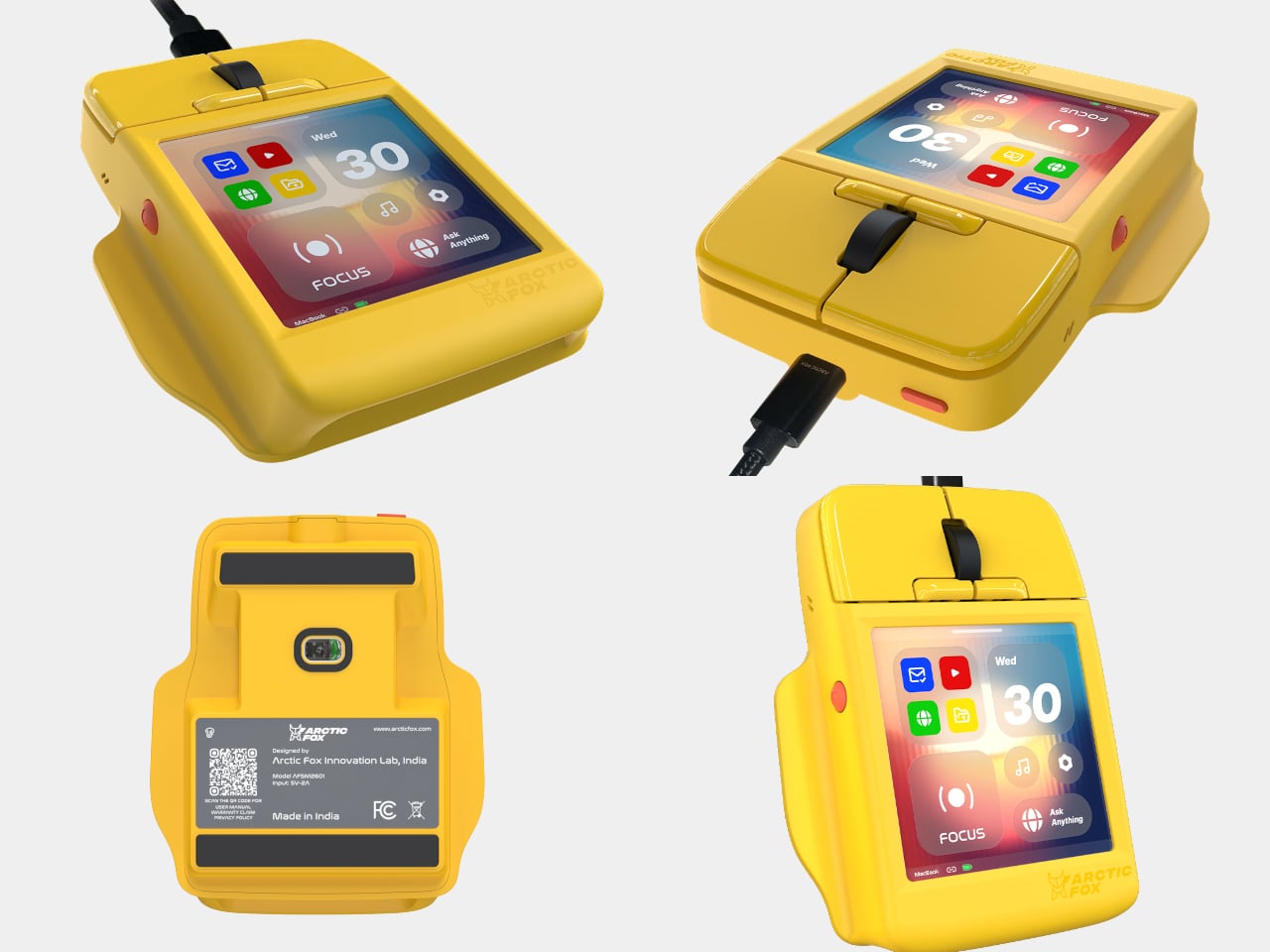
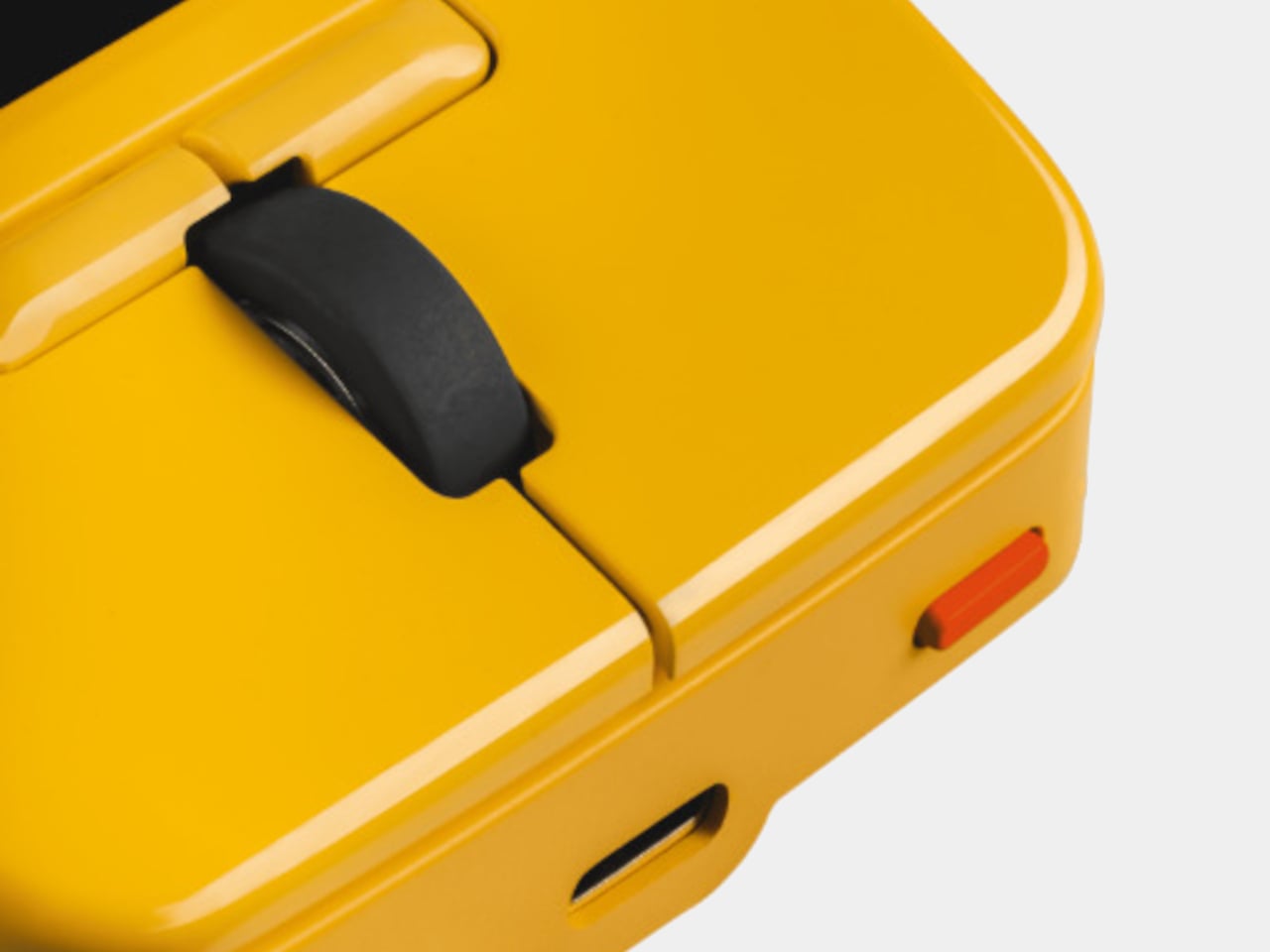
The 720×720 display changes what those fingers can do once they’ve finished clicking. Through the Flow app, you can build layouts for different programs, assign shortcuts, and create macros for repeated tasks. A designer could keep editing commands nearby, then switch to playback controls for another project. Two physical Hyper Keys offer another way to trigger commands without tapping the glass.
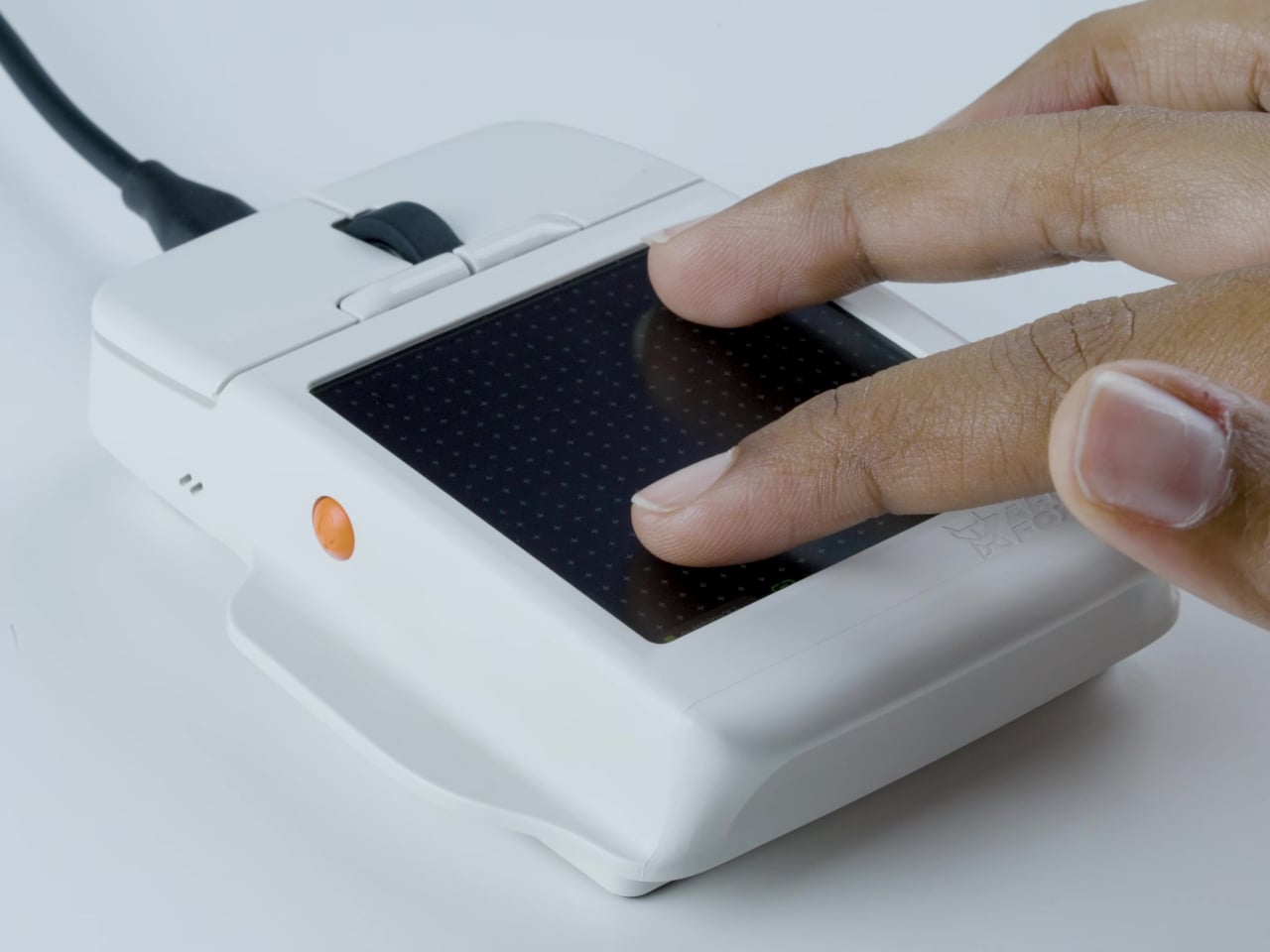
That same surface can become a multitouch trackpad, letting you navigate without sliding the mouse around. An on-screen keyboard offers swipe typing for short messages or quick edits, though squeezing a keyboard onto a mouse doesn’t make it a sensible place to write a novel. Arctic Fox promises haptic feedback, giving touchscreen interactions a physical response instead of relying on visual confirmation.
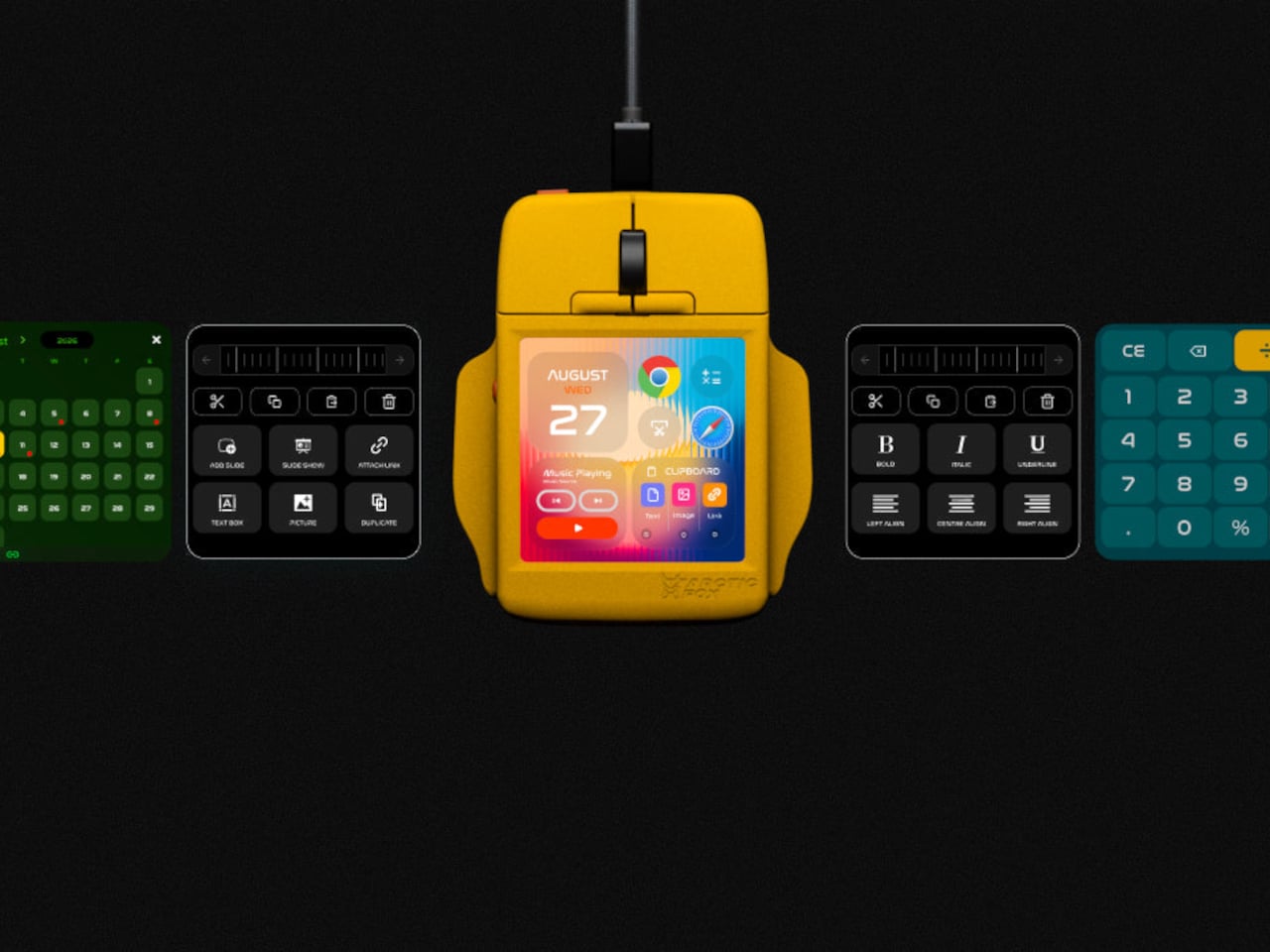
There’s more ordinary housekeeping tucked into that little screen, too. Google Calendar integration is intended to put appointments and reminders within reach, while a calculator saves you from opening another window just to check a number. The Rapid Task feature goes further, launching multiple browser tabs together. Preparing a familiar workspace could become one action, rather than the same routine repeated every morning.
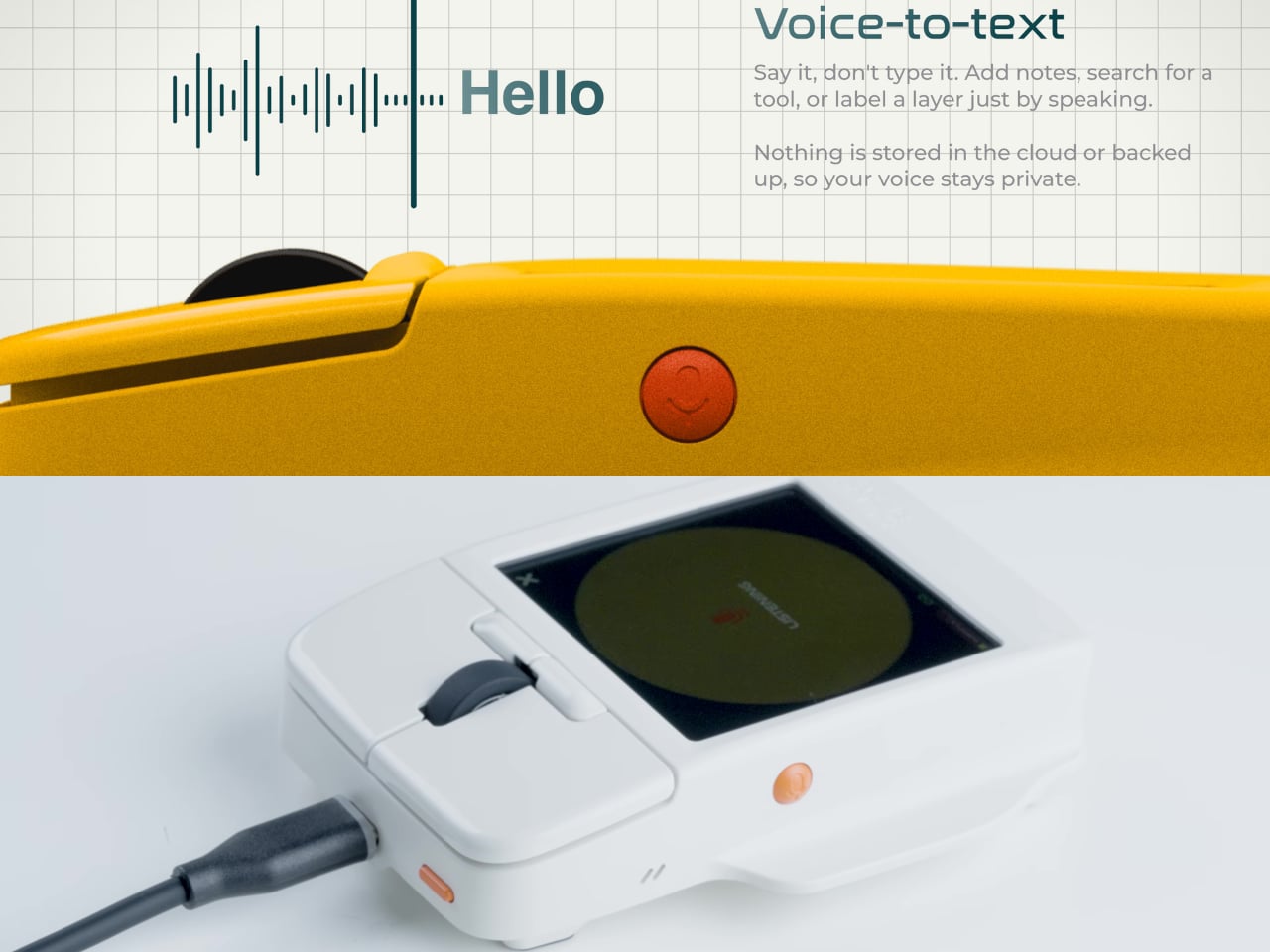
Some controls don’t involve the screen at all. Built-in microphones support voice-to-text for notes or labels, while gyro controls let tilting and rotating the mouse trigger commands for presentations or media. These are different ways of interacting with the same object, rather than more buttons to memorize. Their usefulness, however, depends on how reliably the software translates those movements and spoken words.
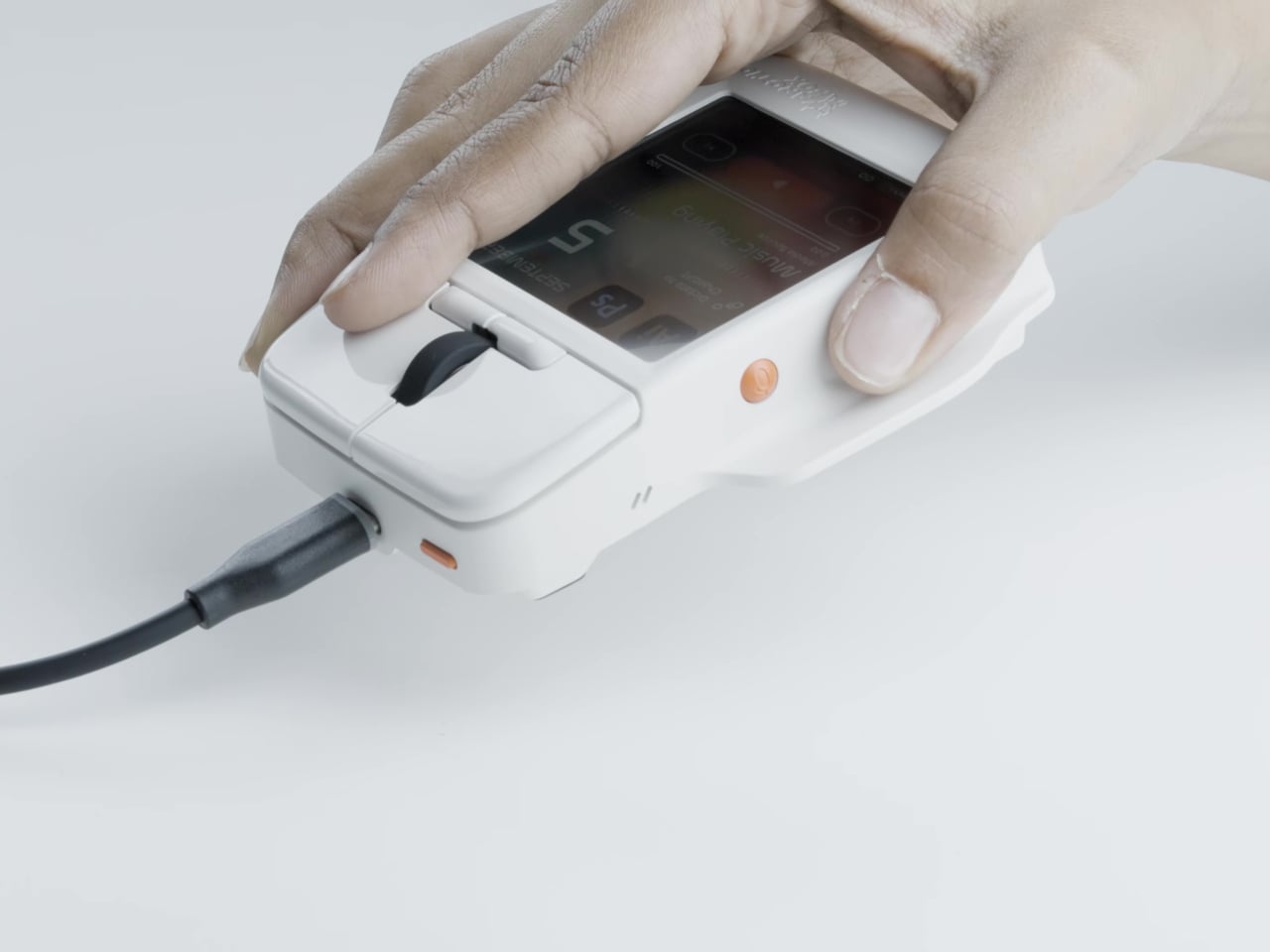
The Super Mouse connects through a USB-C cable, with Windows and macOS listed as supported platforms. Flow handles the customized layouts and integrations, so this isn’t a miniature computer you can use independently. That cable might feel rather old-fashioned beside the colorful touchscreen, but it also makes the relationship clear. The software behind the screen matters as much as anything you can press.
Of course, putting more controls underneath your hand doesn’t automatically make them any easier to use. Reading a calendar or choosing an unfamiliar shortcut still means looking down, and that broad screen changes where your palm can rest. The interesting test will be finding which tasks deserve a place on the mouse before another collection of tiny icons becomes its own distraction.